School timetable management
Every class, every teacher,
perfectly placed.
Classtable handles the hard work of building school schedules. It keeps staff, students, and families informed throughout the school day.
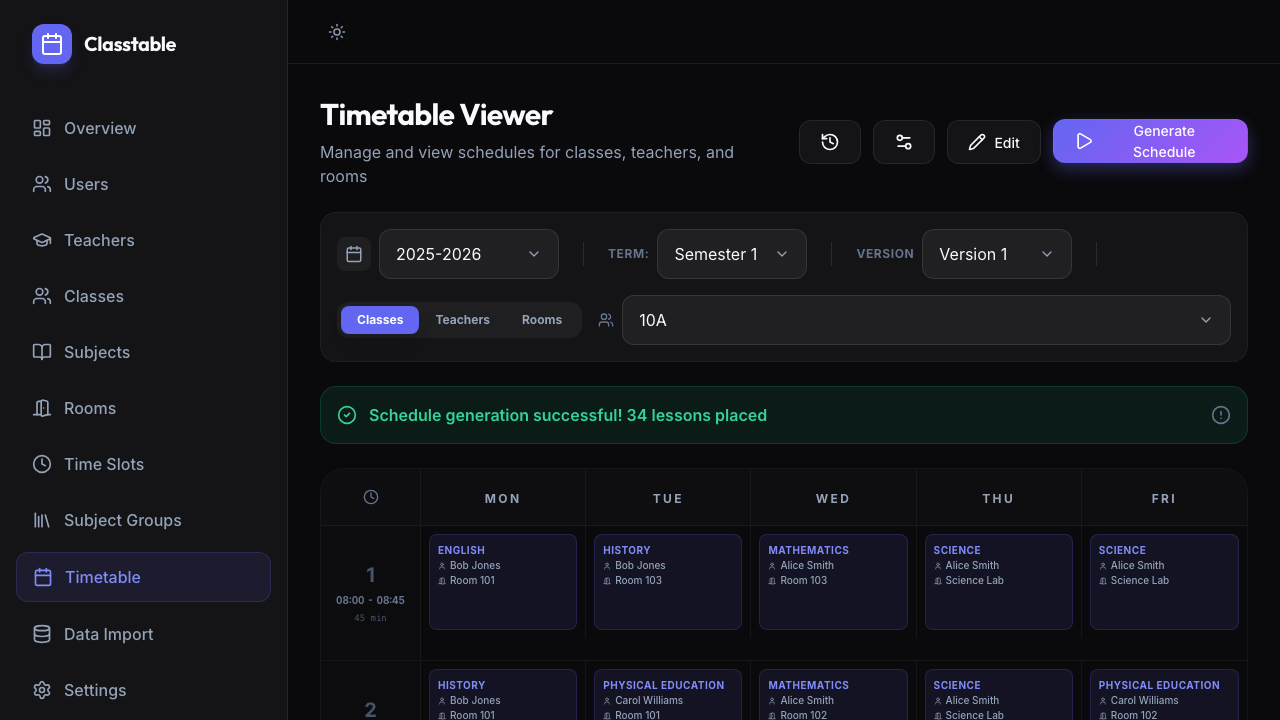
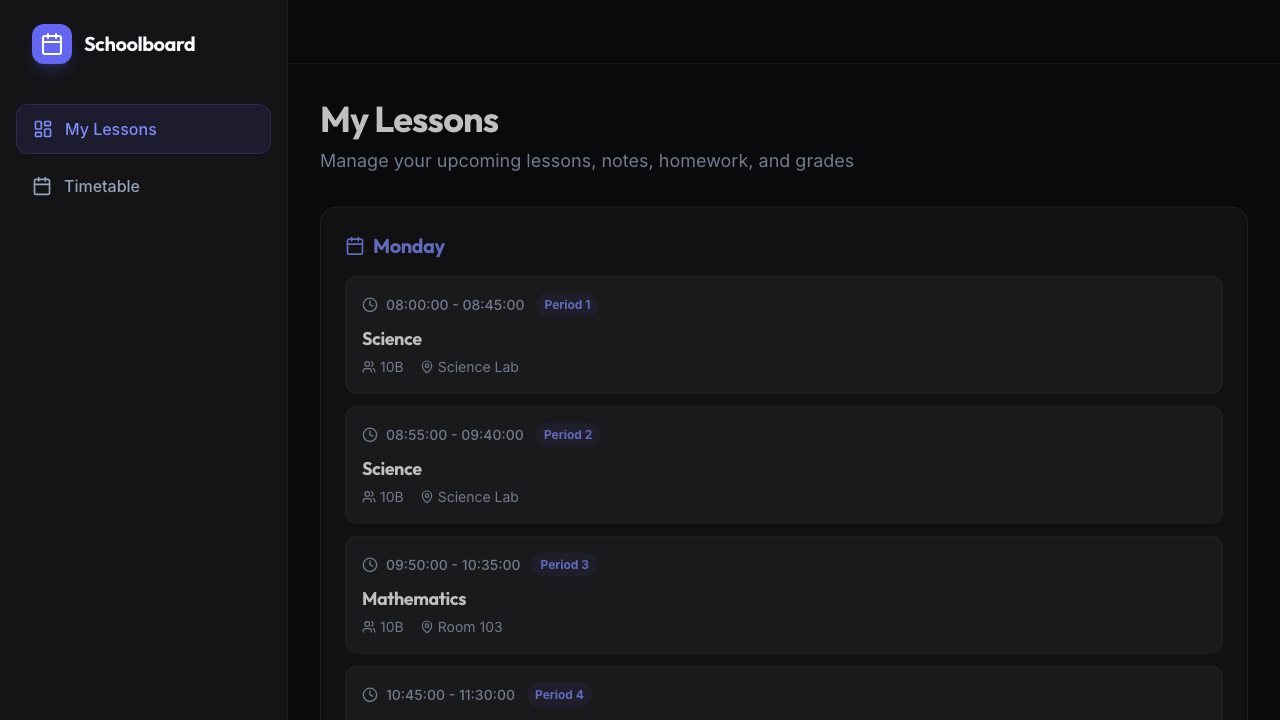
Classtable handles the hard work of building school schedules. It keeps staff, students, and families informed throughout the school day.
Create schedules, share daily information, and track attendance in one place.
A constraint solver builds conflict-free timetables respecting teacher availability, room capacity, subject requirements, and daily limits.
Create schedule versions, compare changes, and activate the one your school will use. Earlier versions stay available.
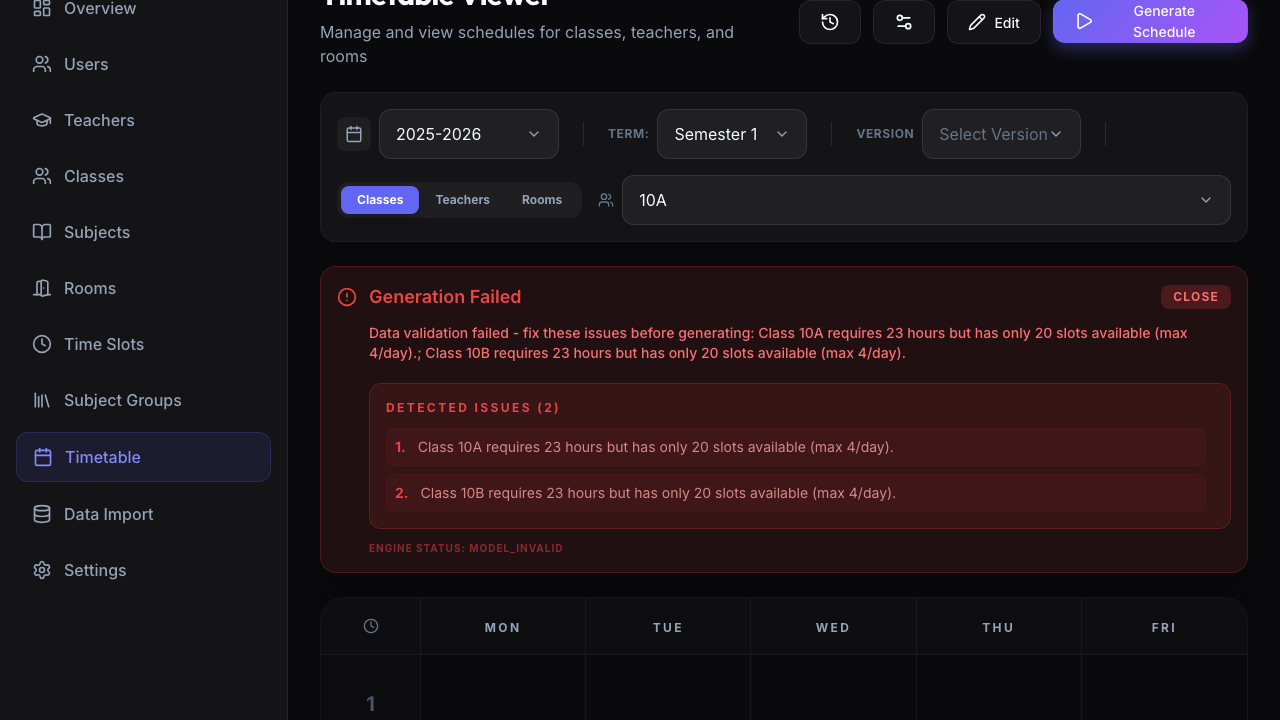
When a schedule exceeds the available hours, Classtable identifies the affected classes and shows what needs adjusting.
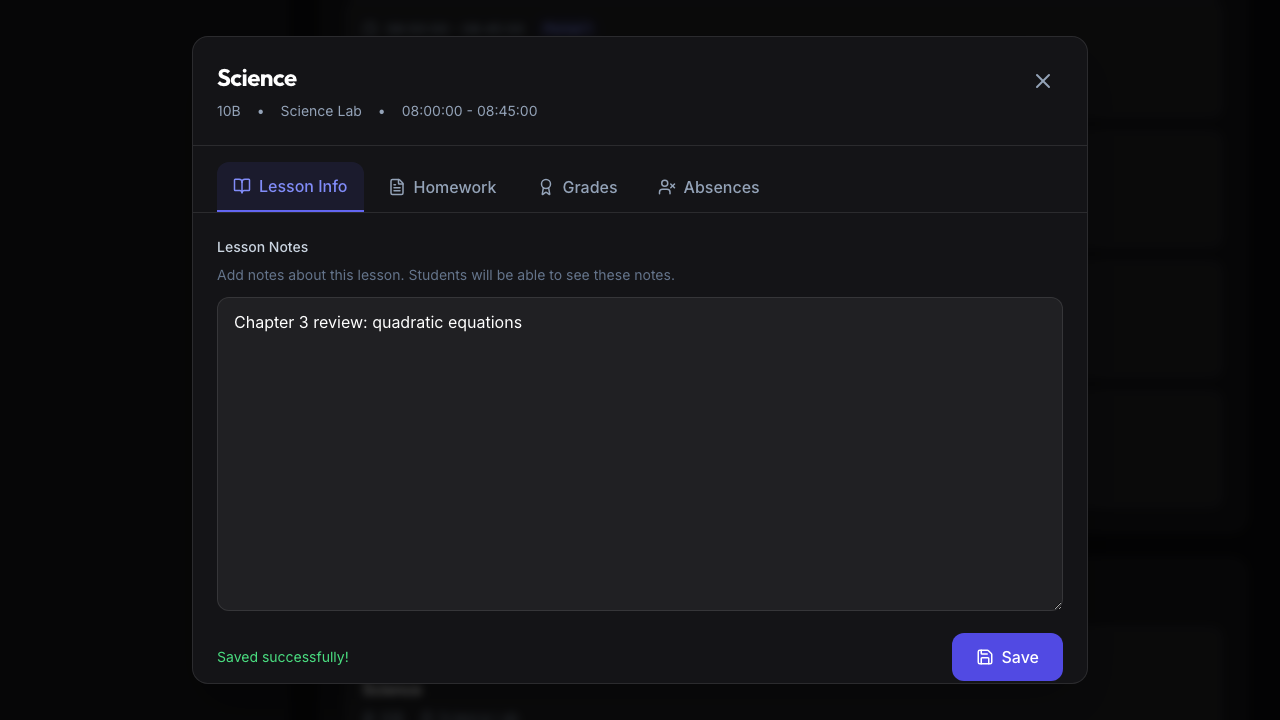
Teachers add notes and homework to each lesson. Students see them on their personal schedules.
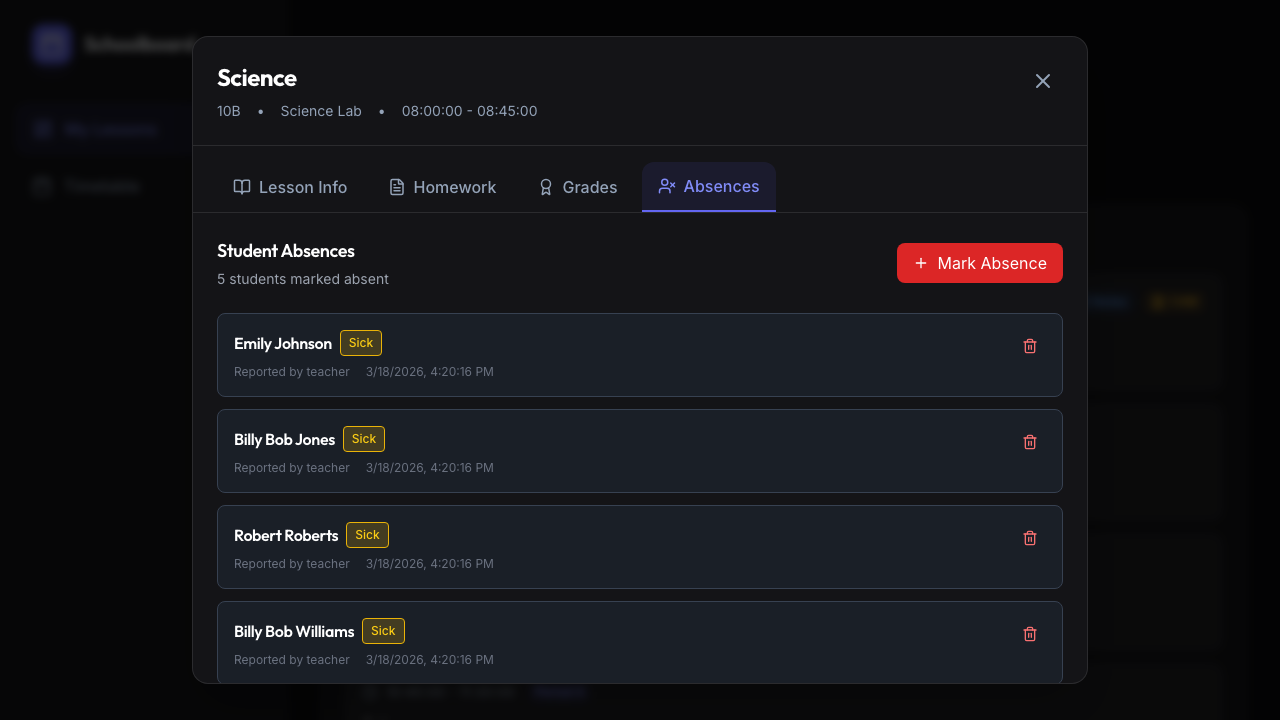
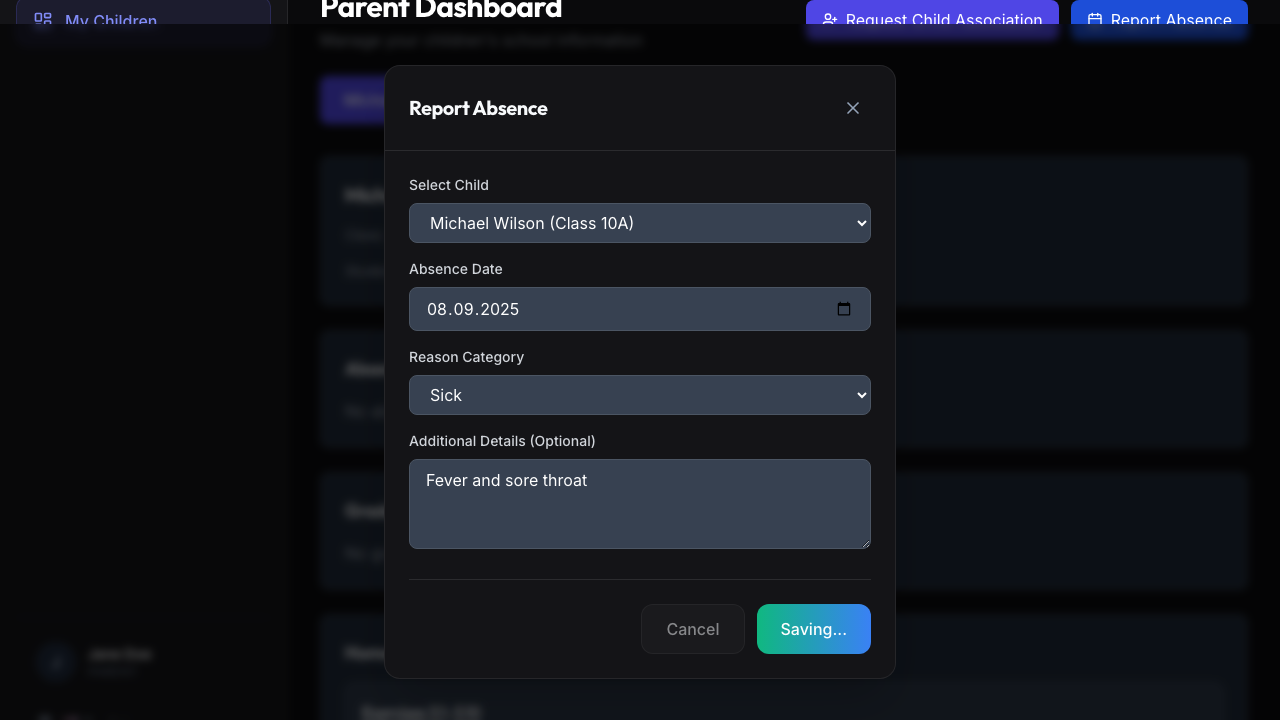
Mark students absent per lesson with reason and timestamp. Parents can also report absences before the school day starts.
Import subjects, rooms, teachers, classes, curricula, and assignments from spreadsheets.
View a full weekly timetable by class, teacher, or room. Switch between views in a click.
Teachers and admins set availability by day and period before generation. The solver follows those settings when placing lessons.
Set period start and end times across the school, then mark break periods. The solver reserves those periods when placing lessons.
The solver checks each curriculum before generation. When a class needs more hours than the timetable allows, Classtable lists the shortfall and the affected subjects.
Switch to Edit Mode and drag lessons on the grid. Drop a lesson into an empty slot to move it, or onto another lesson to swap them. Undo and redo let you review each change.
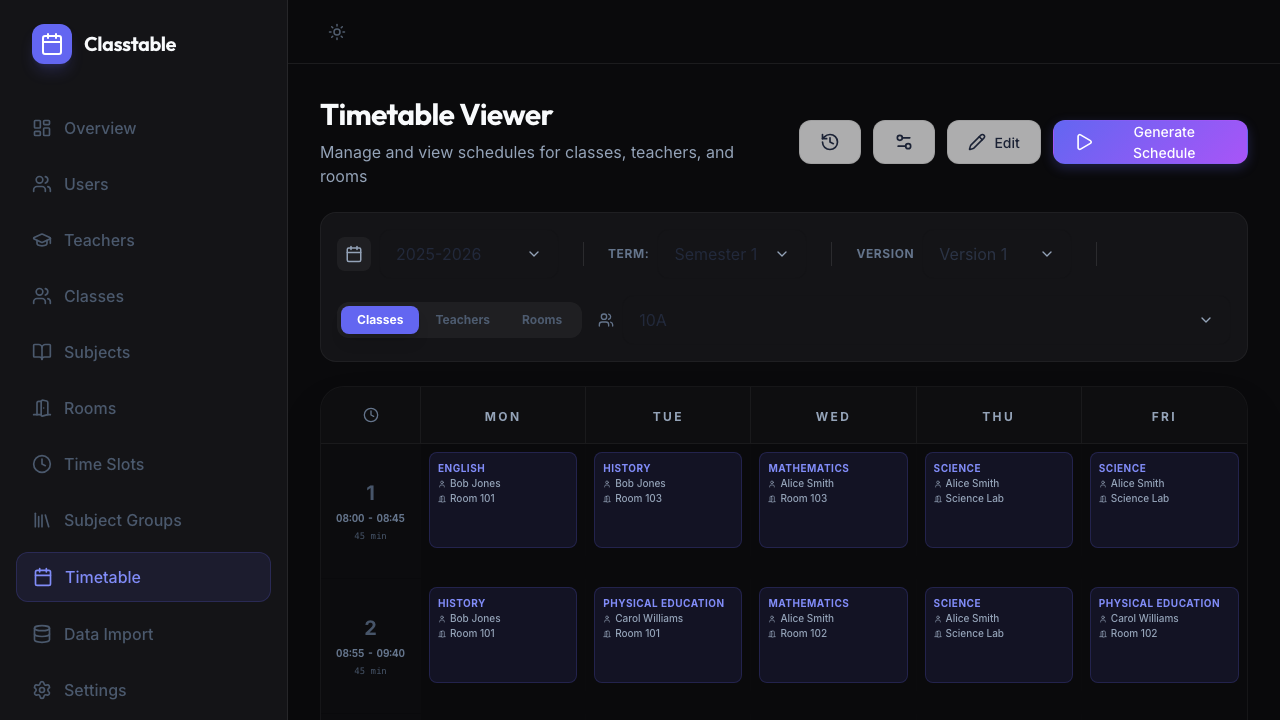
Choose dark or light mode with one click. Your preference is saved to your account and loads each time you sign in.
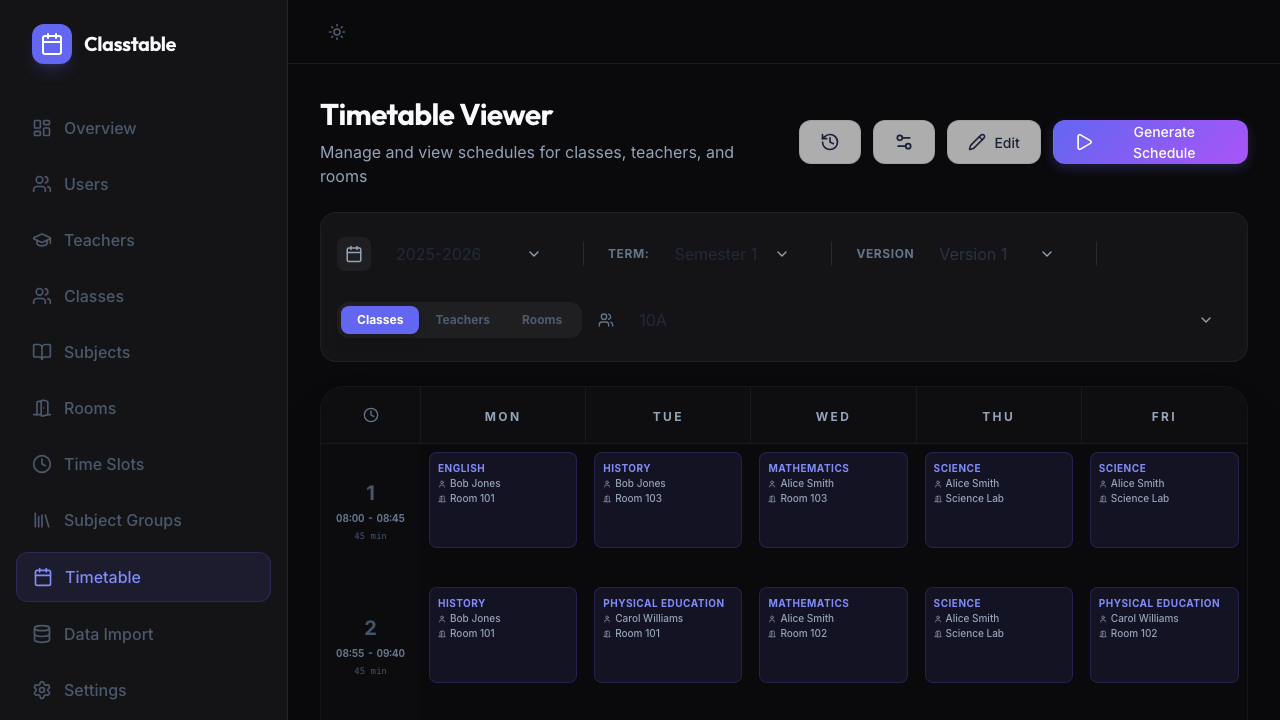
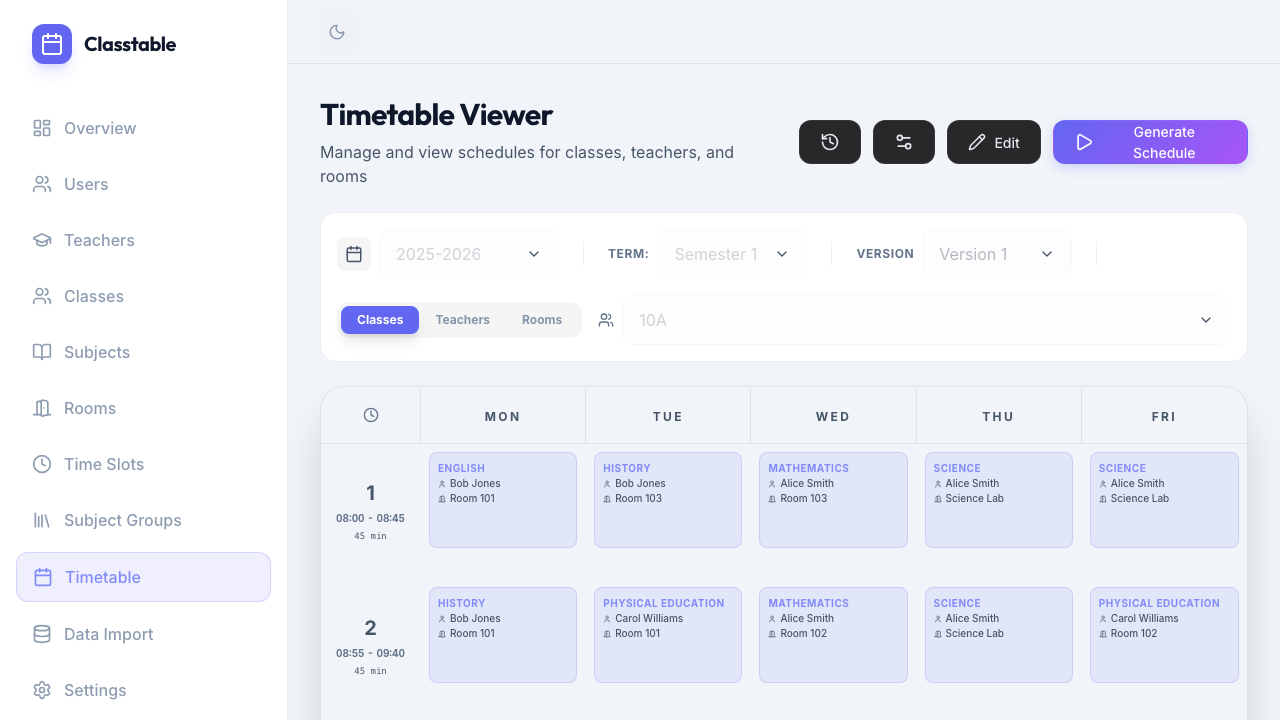
Review the day's lessons in order. Open any lesson to add notes, assign homework, enter grades, or record absences. Everything stays in one browser tab with a consistent interface.
Open a lesson to review its details, add notes, assign homework, enter grades, and check attendance. Changes save from the lesson panel.
The Absences tab inside each lesson shows every student marked absent with the reason, who reported it, and when. Adding a new absence takes two clicks.
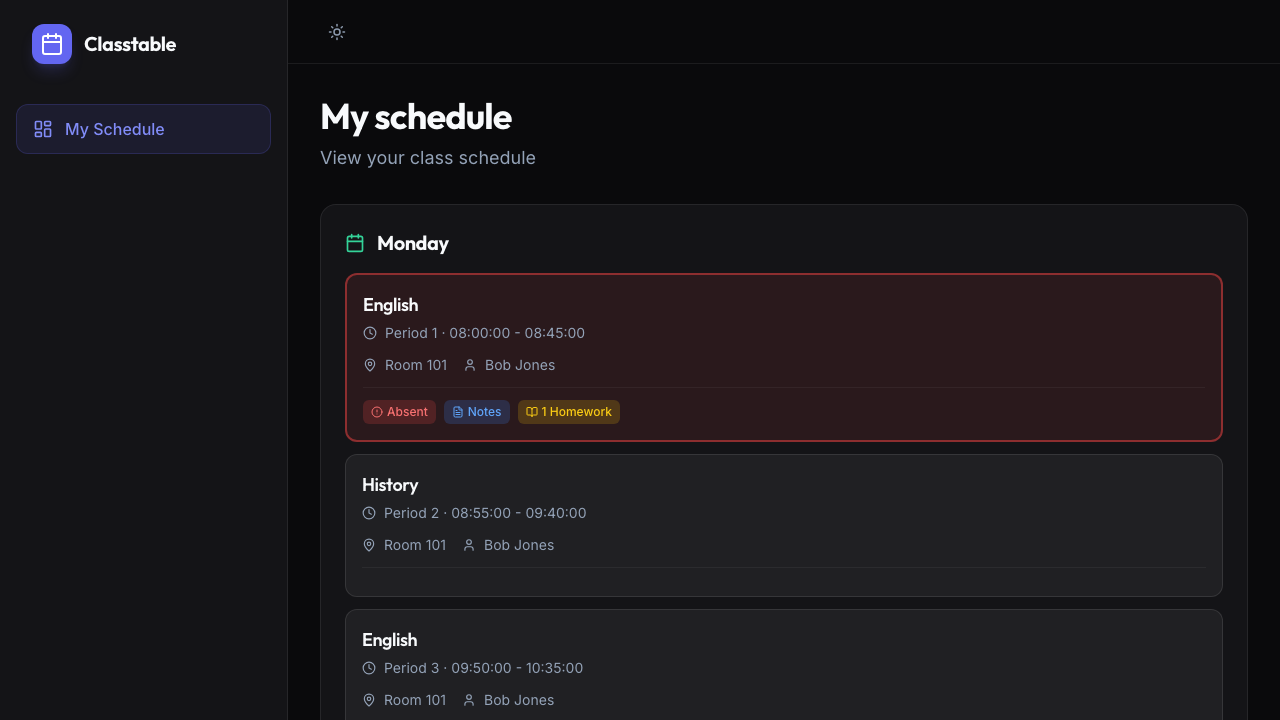
Students see each day's timetable with room, teacher, lesson time, homework, and teacher notes. A red marker highlights recorded absences.
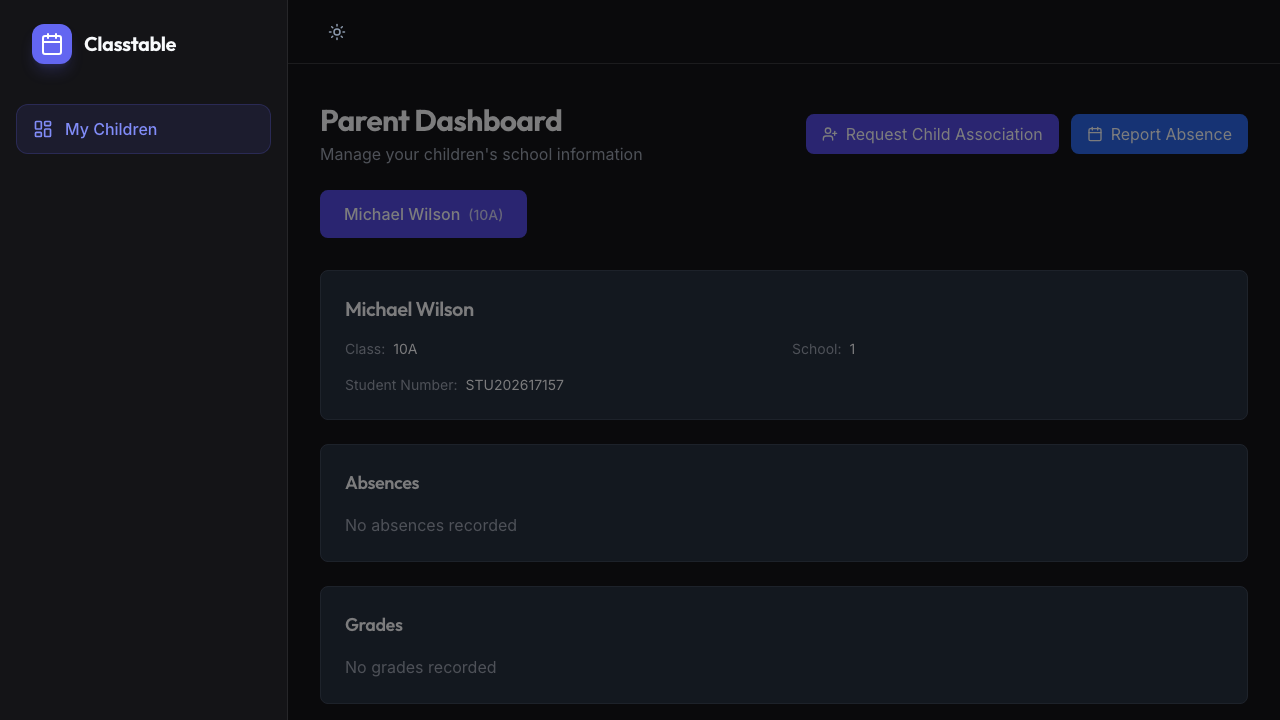
Parents create an account, link it to their child with a student number, and submit the request for school approval. Once approved, they can view grades, check absences, and report upcoming absences from one place.
Each role has tools and access suited to its responsibilities.
We'll reach out to schedule a walkthrough.
Thank you. We'll be in touch soon to schedule your walkthrough.
We've also sent a copy of your request to your email address.